
What you need
- A smart TV or streaming device connected to your network by Wi-Fi or cable: a TV with apps built in, or a streaming stick or box plugged into a TV.
- An Android phone or tablet connected to the same Wi-Fi network.
- Universal TV Remote Control, free on Google Play.
How a phone controls a TV
Smart TVs and streaming devices listen for commands from apps on your home network. When you press a button in the app, your phone sends that command over Wi-Fi, and the TV reacts just as if you'd pressed the key on its remote.
That's why there's nothing to point at the TV and no infrared emitter is needed. It also means your phone and your TV must be on the same Wi-Fi network: a guest network, or a phone on mobile data, can't reach the TV.
Connect your phone to your TV, step by step
- Turn on your TVTurn the TV on and wait for its home screen. A TV in deep standby may switch its network off.
- Join the same Wi-FiConnect your phone to the Wi-Fi network the TV uses, and turn off any VPN on your phone.
- Open the appInstall Universal TV Remote Control from Google Play and open it. It searches your network and lists the smart TVs it finds.
- Tap your TVTap your TV in the list. If it isn't there, tap Can't find your TV? for a deep scan, or add the TV by its IP address.
- Allow the connectionThe first time, some TVs ask you to allow the connection or show a code. Select Allow on the TV or type the code in the app. You only do this once per TV.
- Start controllingYour remote is ready. Next time, the app connects to your TV by itself.
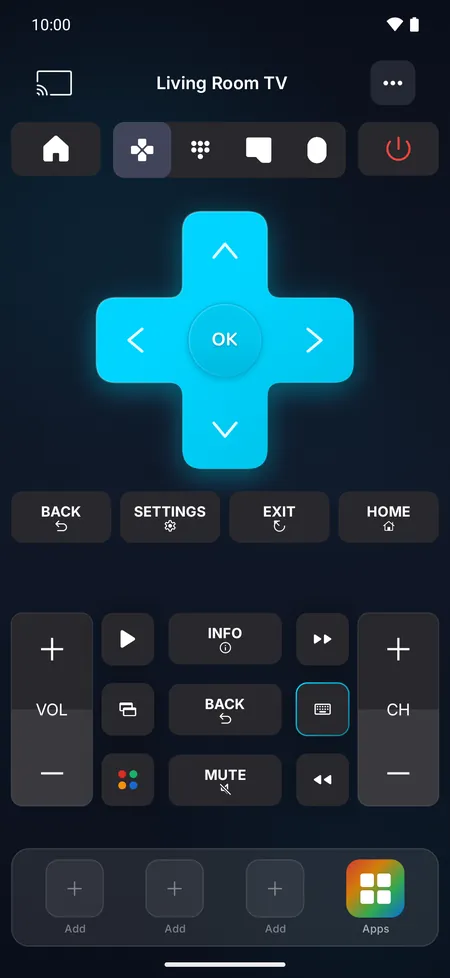
What your phone can do as a remote
- All the usual buttons: direction pad, OK, back, home, volume, mute, channels and playback, plus a number pad and color keys on TVs that use them.
- Type with your phone: search for a show or enter a password with your phone's keyboard. How to type on your TV.
- Touchpad: swipe to move through menus and tap to select. On TVs that show a pointer, move a real cursor.
- Voice search: speak, and your words are typed on the TV (on supported TVs).
- Your apps: open streaming apps directly on the TV and pin your top 3 to the remote.
- Cast: show your phone's photos and videos on the big screen (on supported TVs).
- Power: turn the TV off, and on again on the many TVs that keep their network on in standby.
Instructions for your TV
Each type of TV connects a little differently: some ask you to allow the phone, others show a code. Choose yours:

Frequently asked questions
Does using my phone as a remote need an internet connection?
No. The remote works on your home network, between your phone and your TV. Only voice search uses your phone's speech recognition, which may need an internet connection.
Can I use my phone as a remote for a TV that isn't a smart TV?
Yes, if your Android phone has an infrared (IR) emitter: the app can control almost any TV with infrared, even without Wi-Fi. Without an emitter, a TV with no apps and no network connection can't receive commands from a phone app, but a streaming stick or box plugged into it can.
Can several phones control the same TV?
Yes. Each phone connects on its own. TVs that ask for approval ask once for each new phone.