
Quick checklist
- Turn the TV onTurn the TV on and wait for its home screen.
- Use the same networkConnect your phone to the same Wi-Fi network as the TV, not a guest network.
- Use the same bandIf your router has separate 2.4 GHz and 5 GHz networks, use the same one on both devices.
- Turn off the VPNTurn off any VPN on your phone.
- Check the TV settingTurn on the TV's setting that allows control from phones.
- Scan againScan again from the TV list, run a Deep Scan, or add the TV by its IP address.
1. Make sure the TV is on and fully started
The TV needs to be on and fully started before the app can find it. Turn it on, wait for the home screen, then scan again from the TV list. Some TVs switch their network off in deep standby.
2. Use exactly the same Wi-Fi network
Your phone and your TV must be on the same network name. Here's where your TV shows the network it uses:
- Samsung: Settings › General › Network › Network Status (on newer models: Settings › All Settings › Connection › Network)
- LG: Settings › All Settings › Network (or Connection) › Wi-Fi Connection
- Sony: Settings › Network & Internet › Network status
- Android TV / Google TV: Settings › Network & Internet
- Fire TV: Settings › Network
- Roku: Settings › Network › About
- Vizio: Menu › Network
- Hisense VIDAA: Settings › Network › Network Information
Then open your phone's Settings, go to Wi-Fi and join the same network.
3. Watch out for 2.4 GHz, 5 GHz and guest networks
Many routers have separate 2.4 GHz and 5 GHz networks (for example "MyWiFi" and "MyWiFi-5G"). Put your phone and your TV on the same one. Guest networks keep devices apart on purpose: use your main network instead.
4. Turn off your phone's VPN
VPN apps can block the connection to devices on your home network. Turn the VPN off while you use the remote, then scan again.
5. Check your router's isolation setting
If your router has an "AP isolation" or "client isolation" option, devices on the network can't see each other. Turn it off in the router's settings, then scan again.
6. Allow control from phones on the TV
Many TVs have a setting that lets phones control them over Wi-Fi. When it's off, the TV may not appear in the app or may not respond:
- Roku: Settings › System › Advanced system settings › Control by mobile apps › Network access: Default (or Permissive).
- Sony: Settings › Network & Internet › Remote device settings › Control remotely: On (on some models: Settings › Network › Home network › IP control).
- LG: LG Connect Apps on older models (Settings › All Settings › Network), or TV On With Mobile / Mobile TV On on newer models.
- Fire TV: Settings › My Fire TV › Developer Options › ADB Debugging: On.
- Hisense VIDAA: an option such as Remote Control App or Mobile Device Connection, in Settings › Network (or Settings › System).
- Samsung: if your phone was denied, allow it again in Settings › General › External Device Manager › Device Connection Manager › Device List.
7. Run a deep scan, or add the TV by its IP address
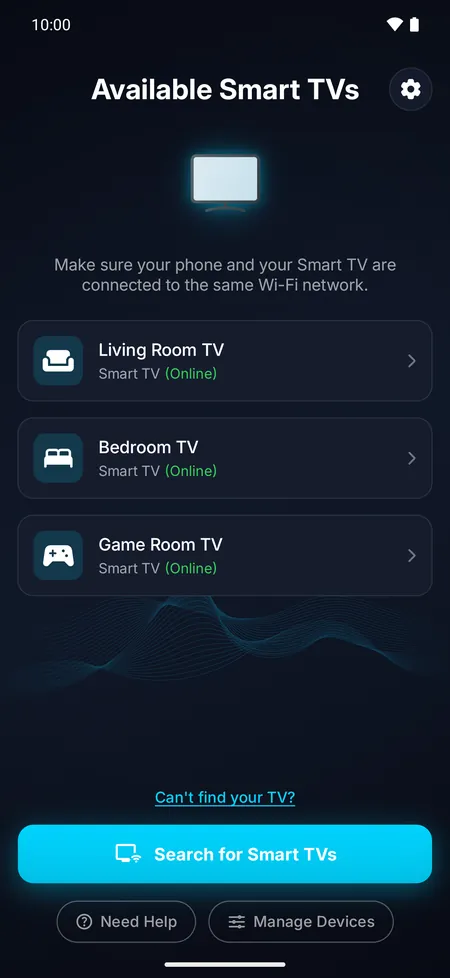
In the app, tap Can't find your TV? and run a Deep Scan: it checks every address on your network and takes about half a minute. You can also add the TV by its IP address, which you'll find in the TV's network settings (the same screens as in step 2).
8. Restart the TV and the router
Turn the TV off, unplug it for 30 seconds, then plug it back in and turn it on. Restart your router too, then search again.
9. Check that it's a smart TV
Over Wi-Fi, this app controls TVs that have a network connection. A TV with no apps and no network connection can't be found on your Wi-Fi: if your Android phone has an infrared (IR) emitter, use infrared instead (see below); otherwise, use its own remote or an infrared universal remote. A streaming stick or box plugged into the TV works over Wi-Fi, though.
10. Use infrared instead
If your Android phone has an infrared (IR) emitter, you can control your TV without Wi-Fi. When no smart TV is found, tap Use infrared instead, or choose Add a TV with infrared from your TV list. Choose your TV's brand, point the top of your phone at the TV and tap the power button until a code works. Infrared works with almost any TV, smart or not.

Frequently asked questions
Why does my TV sometimes disappear from the app?
When a TV goes into deep standby, or gets a new address from the router, the app can lose it for a moment. Turn the TV on and wait for the home screen: the app finds a TV with a new address by itself.
My TV is in the list but won't connect. What now?
Make sure it's on and on the same Wi-Fi, and that you allowed the connection or typed the code the first time. If Deny was selected on a Samsung TV, allow your phone again in the TV's Device Connection Manager.